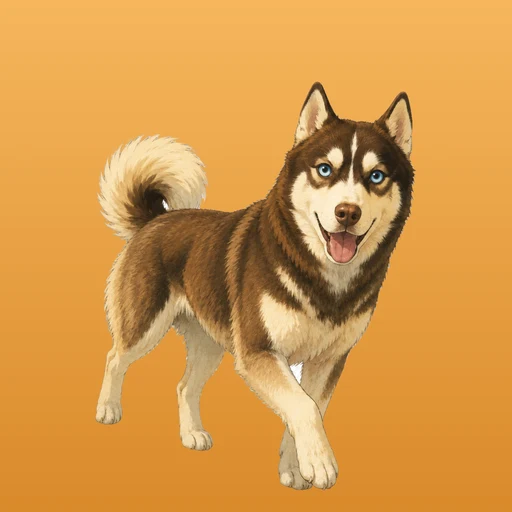

Quick start
The first launch opens the setup guide: seven steps under a sunburst with Sykes. It explains what the app does, then asks who focuses with you, which tags to keep handy, your session rhythm, the permissions it needs and how Do Not Disturb should turn on. Everything it saves can be changed later in Settings, and the guide itself reopens from Settings any time.
- Pick your companions. Bruno the bear is always along. Tick the specialists for the skills you focus in; you can adopt more later.
- Keep a few tags handy. "Thesis", "Rust", "Client work". Tags carry the detail; skills carry the companion.
- Set the rhythm. Default length, break length and a daily goal in minutes. The daily goal drives your streak.
- Grant permissions for notifications, alarms and, on iPhone, the Focus status.
- Choose a Do Not Disturb strategy (below). Timer-only is fine to start.
Do Not Disturb
iOS has no public way for an app to switch Focus on. Focus Pack offers three strategies in Settings → Focus strategy; the Mac handles its own Focus in all three.
Shortcuts
The app runs a shortcut you own and passes the session length in minutes as input. The shortcut sets Do Not Disturb until the session ends, so the system turns it off by itself even if the app is closed.
- Open Shortcuts and create a new shortcut named
Focus On. - Add Adjust Date: add Shortcut Input minutes to Current Date.
- Add Set Focus: turn Do Not Disturb on until the adjusted date.
- Optionally create
Focus Offwith a single Set Focus → Do Not Disturb → Off. It runs when you end a session early. - In Focus Pack, choose Shortcuts and type both names exactly as they appear in the Shortcuts app.
Focus filter
The other direction: a Focus you own starts the session. Focus Pack ships a Focus filter; add it to a custom Focus and the system calls it when that Focus turns on (start a session) and off (end it). The filter fires on every Apple device signed into the Focus, so the session starts on your Mac and iPad too.
- Go to Settings → Focus and add a custom Focus, for example "Deep work".
- Scroll to Focus Filters, tap Add Filter and pick Focus Pack.
- Choose the skill and length the session should use when this Focus turns on.
- In Focus Pack, choose Focus filter as the strategy.
Timer only
No Focus interaction at all. The countdown, the alarm and the companions still work everywhere.
Permissions
- Notifications: the end-of-session notification on the Mac and the Watch, and the time-sensitive one when the alarm cannot ring.
- Alarms (iPhone and iPad): the countdown is a system alarm. It renders the Live Activity on the Lock Screen and in the Dynamic Island and rings even in silent mode.
- Focus status (iPhone): lets the app see whether a Focus is already on, so a mirrored session does not fight one you set yourself.
- Background refresh: silent pushes wake the app when a session changes on another device.
Each one can be granted later from Settings → Permissions; nothing else is requested.
Session rhythm
Three numbers in Settings → Sessions. The LCD on the Focus tab shows the default length; the preset keys and the − / + buttons set custom lengths per session.
Focused minutes are what count. A completed countdown earns 10% extra; ending early keeps the minutes you did. Mood, Tummy and Energy drift down a little every awake hour and pause between 23:00 and 07:00.
Companions
A companion is in the pack once it is adopted. Adopt from the setup guide, the + chip on the Focus and Companion tabs, the empty dens on the pack screen, or Settings → Companions. Every companion has a page in Settings to rename it.
- Sessions recorded before a specialist was adopted stay with Bruno. A newcomer starts fresh.
- A session whose specialist is not in the pack goes to Bruno. Only pack members earn anything.
- Treats cost 2 bones (+30 Tummy), playtime costs 1 (+12 Mood). You earn a bone per 5 focused minutes and a bounty for every sticker.
- Once a skill reaches level 5 its companion's home replaces the sunburst. LCD palettes and alternate app icons unlock under Settings → Rewards.
Sync and pairing
Apple devices stay in sync through iCloud on their own. Turning on Settings → Sync additionally creates an anonymous account on the Focus Pack server, which bridges to Linux and carries the running session between devices. Only finished sessions, companions, stickers and the live session are stored; nothing identifies you.
- On your iPhone or Mac, turn on Settings → Sync. The device enrolls with App Attest.
- Tap Pair another device. A short-lived code appears, like
ABCD-1234. - On the other device, choose Join with a code (Apple) or run
focus login ABCD-1234(Linux). - Review paired devices under Settings → Sync → Devices and remove any you no longer use.
Conflicts resolve per row by the newest change; deletions travel as tombstones; a sticker keeps its earliest unlock date. A write built on a stale revision of the live session is refused and folded back in, so two devices can never fight over one countdown.
Linux CLI
focus is a command-line client for Linux built for Omarchy and other Arch setups. It
keeps its data in plain JSON under the XDG directories, syncs after every command, prints a Waybar
module and ships a small daemon that notifies when time is up and silences notifications.
Install
- Install Swift 6:
yay -S swift-bin, or use swiftly. - Run the installer from the
Clients/focus-clifolder. It builds a release binary into~/.local/bin/focus, enables thefocus-daemonuser unit and prints the Waybar snippet. - Pair: Settings → Sync → Pair another device on the phone, then
focus login ABCD-1234.
./omarchy/install.sh
focus login ABCD-1234
focus start 45 -s coding --label "Rust"Commands
focus start [min] [-s skill] [--label tag]Start a session in a skill of your pack.focus pause / focus resume / focus stopControl the session, even one started on another device.focus toggleStart, pause, resume or acknowledge, depending on state. Waybar click.focus status [--waybar] [--json]Remaining time, skill, tag, today's focus, companion.focus stats [--range week|month|year|all]Totals, streak, breakdown per skill and tag.focus skills / focus use <skill>The pack with levels; set the default skill.focus pet [-s skill] [feed|play]Check on, feed or play with a companion.focus achievements [--all]The sticker book.focus sync / focus devicesPush and pull; list or remove devices.Skills are accepted by id (coding), name (programming) or companion
name (sykes), ignoring case.
Configuration
~/.config/focuspack/config.json holds the server, account, defaults and the Do Not Disturb
hook:
{
  "activeSkill": "coding",
  "defaultMinutes": 25,
  "breakMinutes": 5,
  "dailyGoalMinutes": 120,
  "dnd": "mako",
  "dndStartCommand": "dunstctl set-paused true",
  "dndEndCommand": "dunstctl set-paused false",
  "icons": { "idle": "", "running": "", "paused": "", "done": "" }
}dndMAKOAdds mako's do-not-disturb mode for owned and mirrored sessions. none disables it.dndHOOKSRuns dndStartCommand and dndEndCommand through /bin/sh -c.iconsGLYPHSWaybar glyphs per state. Defaults use Nerd Font symbols, which Omarchy ships.Files
~/.config/focuspack/config.jsonserver, tokens, defaults, icons~/.local/share/focuspack/history.jsonfinished sessions~/.local/share/focuspack/companions.jsonone companion per skill~/.local/share/focuspack/achievements.jsonearned stickers~/.local/state/focuspack/session.jsonthe running session, absent when idle
Waybar
Add the module to ~/.config/waybar/config.jsonc and list "custom/focus" in modules-right. focus waybar-config prints the same snippet.
"custom/focus": {
    "exec": "focus status --waybar",
    "return-type": "json",
    "interval": 1,
    "on-click": "focus toggle",
    "on-click-right": "focus stop",
    "format": "{}",
    "tooltip": true
}Reload with omarchy-restart-waybar. The module sets the CSS classes idle, running, paused and done:
#custom-focus.running { color: #f0a94a; }
#custom-focus.paused { color: #a996e6; }A session started on the iPhone shows up in the bar within a second through the daemon's long-poll. The tooltip says where it started; a click pauses it everywhere.
Shortcuts and Siri
Two App Intents are exposed to Shortcuts and Siri: Start Focus Session (skill, length and tag as parameters) and End Focus Session. Use them in automations, for example start a Deep work session when you connect to your desk's Wi-Fi, or say "Start a reading session in Focus Pack".
- The Focus Timer widget starts your default session with one tap.
- Sessions started by an intent behave like any other: they own the session and sync everywhere.
- The URL scheme
focuspack://opens the app from other tools.
Widgets and complications
Home Screen and Desktop
- Focus Timer (medium): start with one tap.
- Focus Time, Streak, Streak Week.
- Companion: the active companion and its mood.
- Skills: pack level and top skills.
Lock Screen and Watch
- Lock Screen accessories for focus time and streak.
- Watch complications: focus countdown or today's focus (circular, rectangular, inline, corner).
- Your companion in the Smart Stack.
Widgets read the same database as the app, so they update the moment a session ends.
Troubleshooting
- Do Not Disturb did not turn on.
- Check the strategy under Settings → Focus strategy. For Shortcuts, the names must match exactly and the shortcut must contain a Set Focus action. For the Focus filter, make sure Focus Pack is listed under the Focus's filters.
- The alarm did not ring.
- Alarms need the Alarms permission and are only available on iPhone and iPad. On the Mac a time-sensitive notification plus a sound marks the end.
- My Mac shows a session I did not start.
- That is a mirror of a session running on another device. Pause or end it from any device; whoever ends it writes the record.
- Levels differ between devices.
- Run a sync. Levels are computed from history, so once the histories match the levels match.
- The simulator cannot pair.
- The simulator cannot attest. Join it with a code generated on a real device.